Database
Every workspace has a dedicated PostgreSQL relational database. You can use this database to store structured (relational) data for your workspace. You can easily access it from external visualization solutions such as Tableau or Power BI.
Features
All workspace members can browse database tables and preview data in each table. However, access to database credentials and write permissions depend on your role:
Database permissions by role
- Viewers: Can browse tables and view data, but cannot see database credentials or write to the database
- Editors: Can browse tables, view data, access database credentials, and write to the database
- Admins: Can browse tables, view data, access database credentials, write to the database, and regenerate database passwords
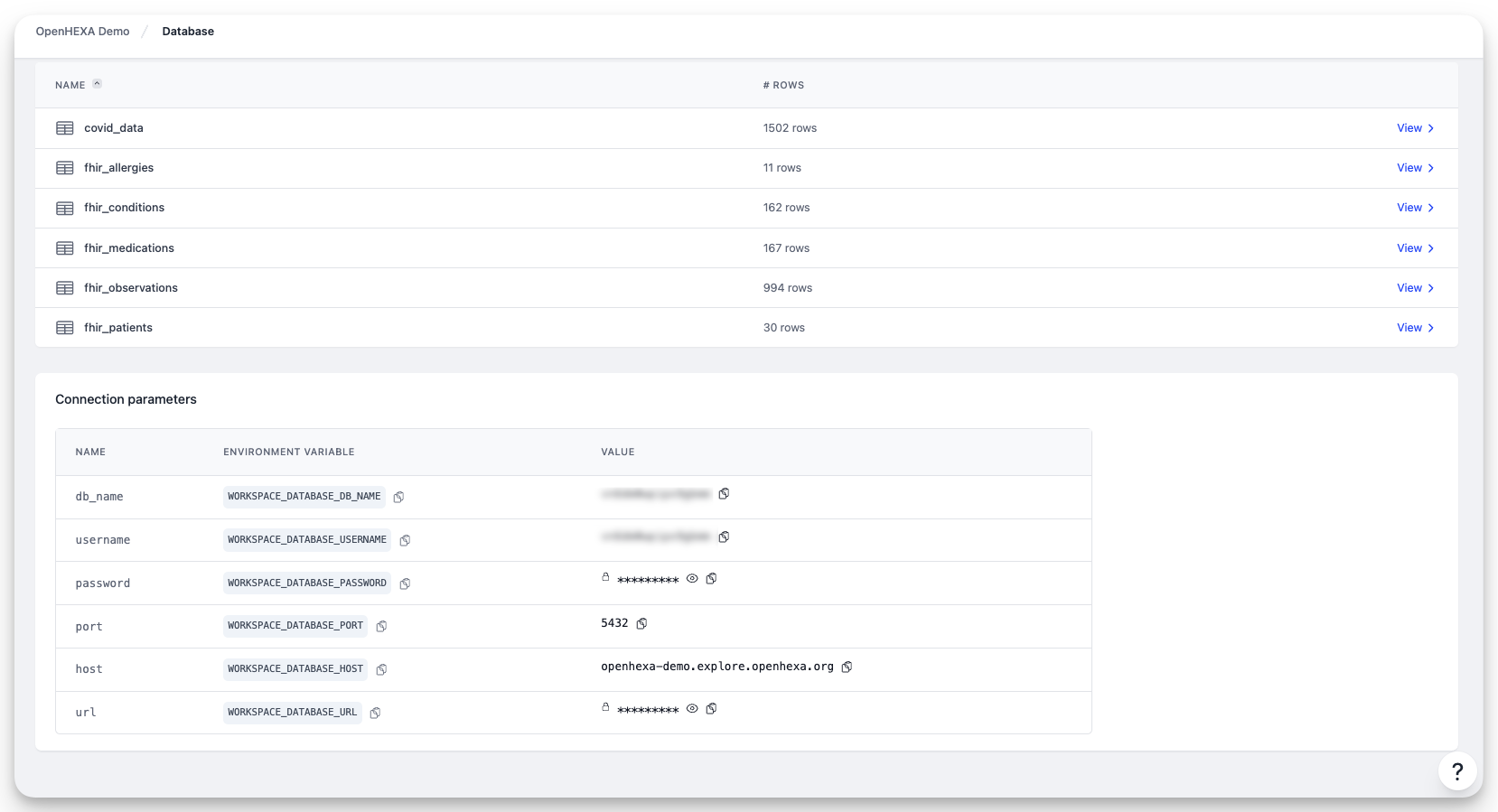
You can use the workspace database in OpenHEXA notebooks and OpenHEXA data pipelines.
You can also use your OpenHEXA workspace database as a data source in data visualization and BI tools like Tableau or Power BI. Simply copy the connection parameters from the database page and paste them into your tool.
Database credentials
Each workspace provides two sets of database credentials:
Read-only connection
The read-only connection is recommended for visualization tools like Superset, Power BI, Tableau, and other dashboard applications. This connection only allows SELECT queries, preventing accidental data modifications when exploring data.
The read-only credentials include:
- Host: The database server address
- Port: The connection port
- Database name: Your workspace database name
- Username: A read-only user (ending in
_ro) - Password: Auto-generated password
- Connection URL: A complete PostgreSQL connection string
Read/write connection (full access)
The full access connection is intended for notebooks and pipelines that need to create, update, or delete data. Use these credentials when your code needs to write to the database.
Use read-only credentials for dashboards
When connecting visualization tools, always use the read-only credentials. This prevents accidental data modifications and follows the principle of least privilege.
Regenerate passwords
Workspace Admins can regenerate database passwords if they are compromised:
- Go to Settings in your workspace.
- In the Database section, click Regenerate password for the credentials you want to reset.
Password regeneration impact
Regenerating a password will immediately invalidate the old password. Any tools or pipelines using the old credentials will need to be updated.
Connect to Apache Superset
Apache Superset is a popular open-source data visualization and exploration platform. You can connect your OpenHEXA workspace database to Superset for advanced analytics and dashboard creation.
-
Access database connection parameters
- Go to your workspace database page in OpenHEXA.
- Copy the connection parameters (host, port, database name, username, and password).
-
Add database in Superset
- In Superset, go to Settings > Database Connections.
- Click + Database to add a new connection.
- Select PostgreSQL as the database type.
-
Configure connection
- Host: The host from your OpenHEXA database parameters
- Port: The port from your OpenHEXA database parameters
- Database Name: The database name from your workspace
- Username: The provided username
- Password: The provided password
- Display Name: A descriptive name for your connection (for example, "OpenHEXA Workspace DB")
-
Test and save
- Click Test Connection to verify the setup.
- If successful, click Connect to save the database connection.