Datasets
Datasets are a powerful feature in OpenHEXA that help you manage, share, and version control your data assets. They serve as centralized repositories for your most valuable data and provide a structured way to organize information that you can share with partners.
Key benefits
Datasets provide a centralized way to:
- Share and distribute data across workspaces within your organization
- Store validated, production-ready data for analytics workflows
- Track changes with automatic versioning
- Annotate and document important data assets
Dataset permissions by role
- Viewers: Can browse, search, download, and view dataset metadata
- Editors and Admins: Can browse, search, download, view metadata, create datasets, and update dataset versions
Create a dataset
You can create datasets in two ways:
Web interface
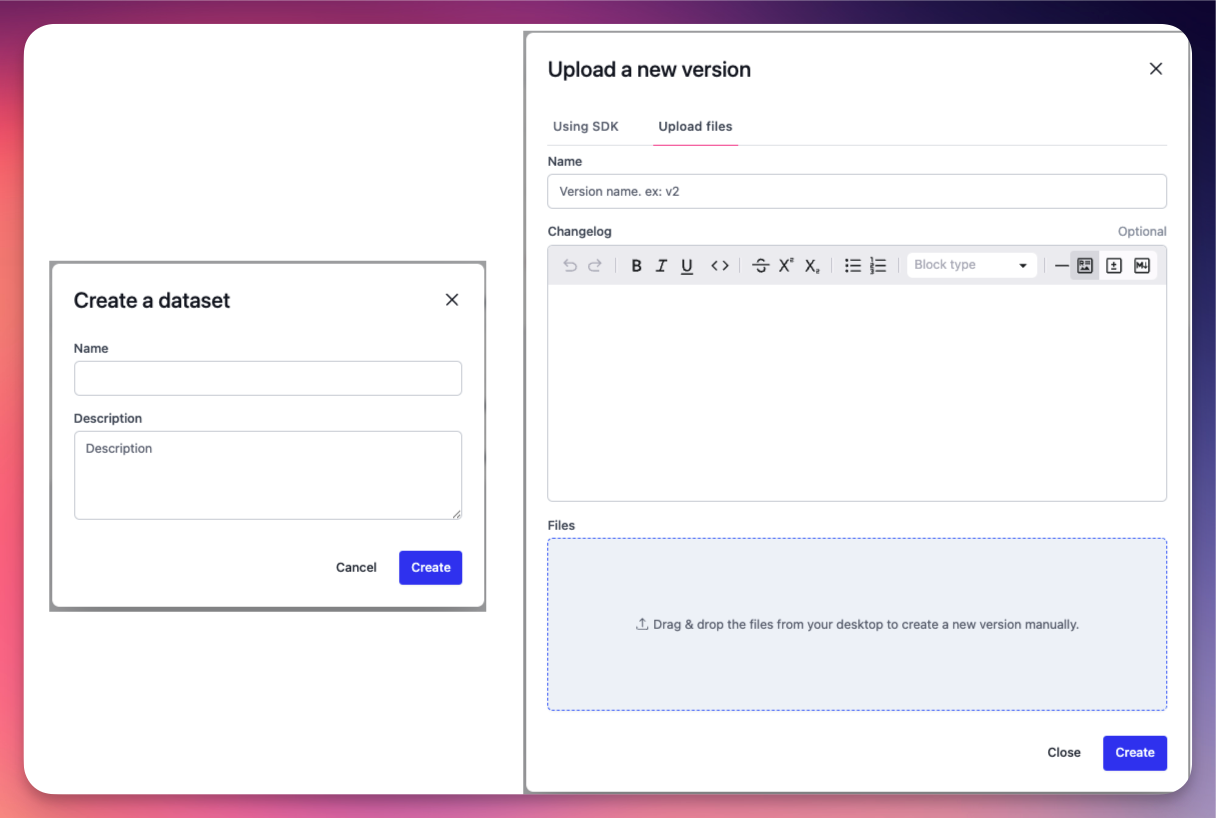
- Click Create in the datasets section.
- Provide a descriptive name for your dataset.
- Add a detailed description that explains the dataset's purpose and contents.
- Upload the files that will make up the first version of your dataset.
OpenHEXA SDK
For programmatic dataset creation, use the OpenHEXA SDK to create and manage datasets through code.
General information
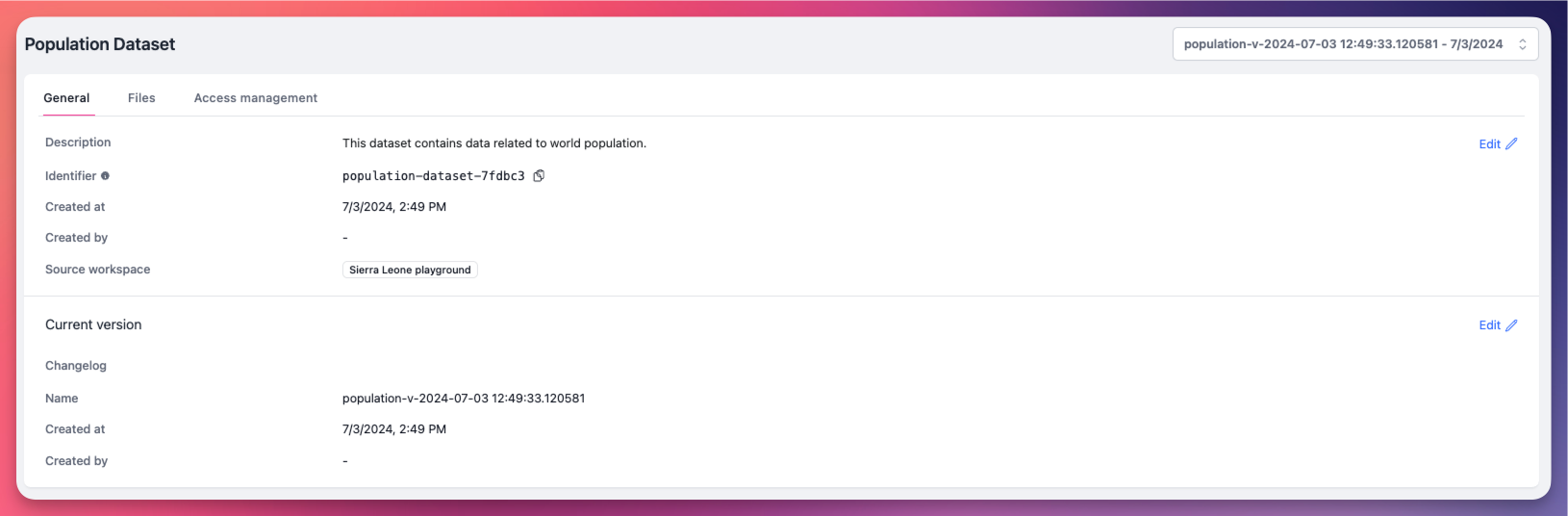
The General section provides essential metadata and configuration options for your dataset:
- Description: Edit the dataset description to provide context about its contents and purpose
- Identifier (Slug): A unique identifier that you can use to reference this dataset programmatically with the OpenHEXA SDK
- Creation Details: View who created the dataset and when
- Source Workspace: The workspace where the dataset was originally created (see Access management for sharing options)
Version management
OpenHEXA automatically tracks versions for all datasets. This provides a complete history of changes and lets you monitor how your data evolves over time.
Version navigation
- Use the version picker in the top-right corner to switch between different dataset versions.
- Each version represents a snapshot of your dataset at a specific point in time.
Current version details
The Current Version section displays:
- Version Metadata: Information about the current version, including creation date and author
- Changelog: Detailed notes about what changed in this version compared to previous versions
File management
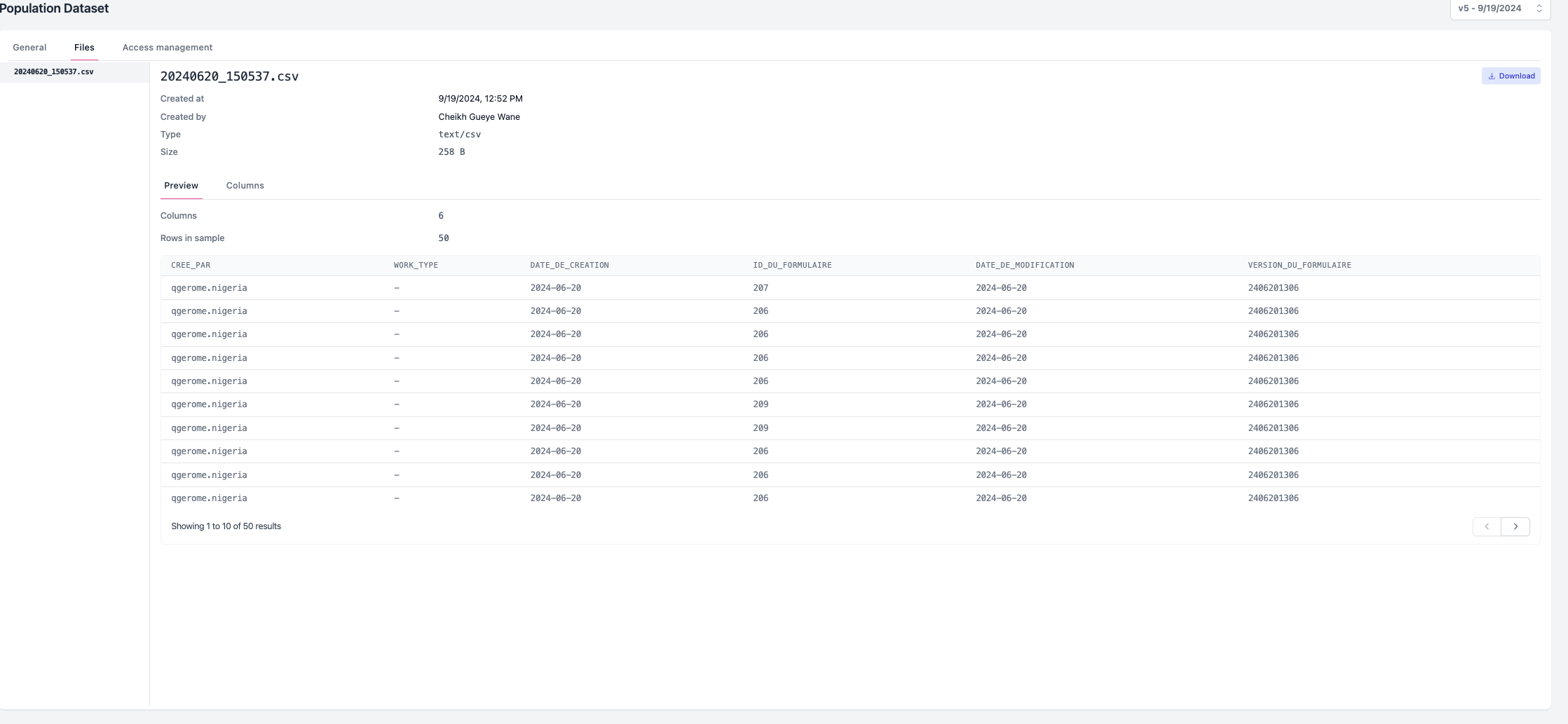
Datasets can contain multiple files of various types. The file browser on the left side lets you navigate between different files within your dataset.
Supported file types with preview
OpenHEXA provides inline preview for the following file types:
| Category | File Types |
|---|---|
| Images | Image/* (JPEG, PNG, GIF, and more) |
| Videos | Video/* (MP4, AVI, MOV, and more) |
| Audio | Audio/* (MP3, WAV, and more) |
| Documents | Text/html, Text, Application/pdf |
| Tabular Data | CSV, XLS, XLSX, Parquet |
Tabular data analysis
For structured data files (CSV, XLS, XLSX and Parquet), OpenHEXA provides profile analysis capabilities:
Data preview
- View your tabular data in an interactive table format
- Sort and filter columns to explore your data
- Understand your dataset structure quickly
Column profiling
Access detailed statistics for each column in the Columns section:
- Data Quality: Missing values percentage and data type information
- Numeric Statistics: Mean, median, standard deviation, minimum, maximum, and quantiles
- Data Distribution: Insights into how your data is distributed across different values

Column metadata
Enhance your data understanding by adding custom metadata to columns:
- Go to the column you want to annotate.
- Click Edit.
- Add custom attributes using label-value pairs.
- Provide descriptive information about the column's purpose and content.
Access management
Dataset sharing is one of OpenHEXA's most powerful collaboration features. It lets you distribute data across your organization while maintaining proper access controls.

Sharing options
Workspace-specific sharing
- Click Share with a workspace to grant access to specific workspaces.
- Select the target workspace from the available list.
- This approach provides granular control over data access.
Organization-wide sharing
- Activate the Share with the whole organization toggle.
- This makes the dataset available to all workspaces within your organization.
- ⚠️ Organization-wide sharing overrides any specific workspace permissions.
Sharing permissions
Shared dataset permissions
When you share datasets with other workspaces, they get read-only access. The original workspace retains exclusive modification rights. However, shared workspaces can:
- Add metadata annotations to tabular files
- Update changelog information
- Share the dataset with additional workspaces