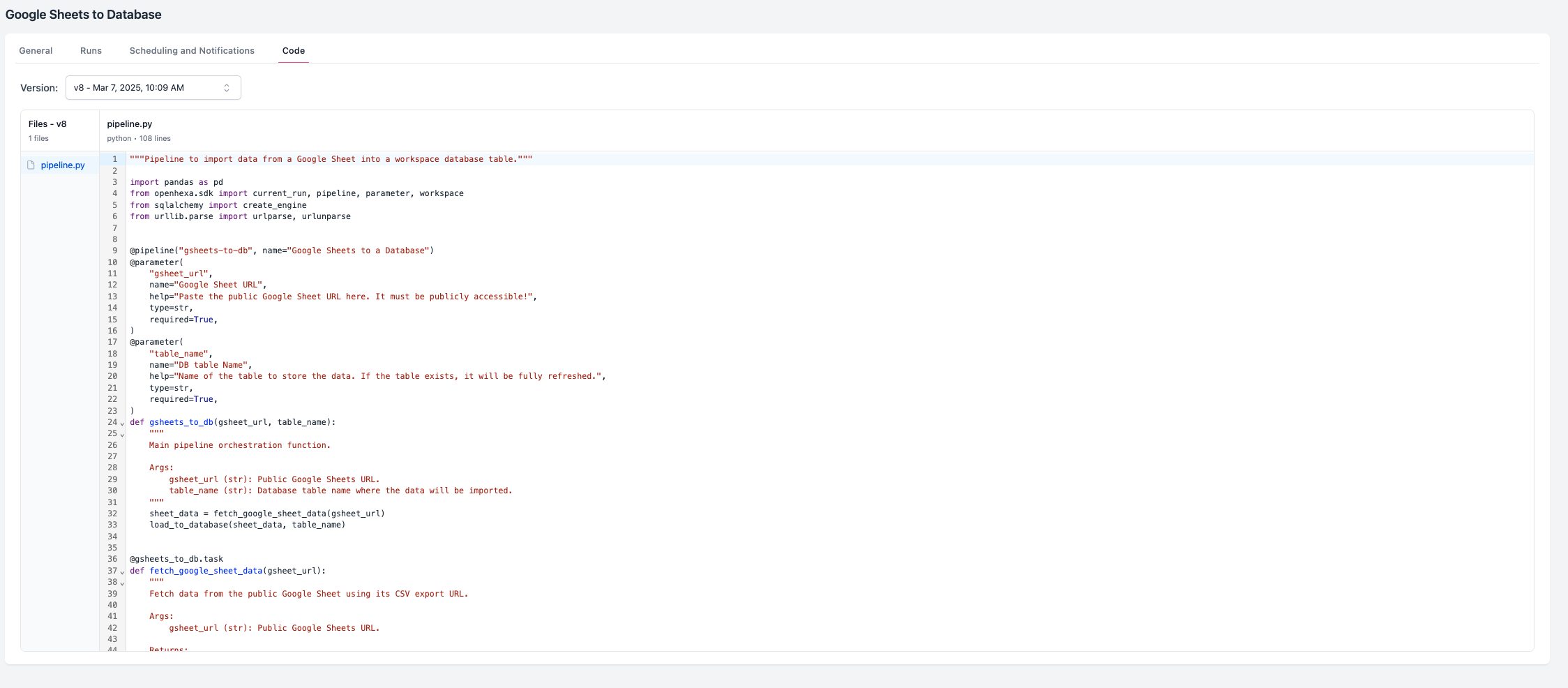
Pipelines
Pipelines are the core automation engine of OpenHEXA. They let you create sophisticated data workflows that can process, transform, and analyze information automatically. Think of pipelines as programmable data applications that execute complex tasks with minimal human intervention.
What are pipelines?
OpenHEXA pipelines are Python-based data applications designed to handle a wide range of data processing scenarios:
- Data processing and ETL: Extract, transform, and load data from various sources into your analytics environment
- Report generation: Automatically create PDF reports, Microsoft Word documents, and other outputs based on your data
- System integration: Connect different data systems by fetching, transforming, and pushing data between platforms
- Data analysis: Perform complex analytical tasks and generate insights from your datasets
- Workflow automation: Orchestrate multi-step processes that would otherwise require manual intervention
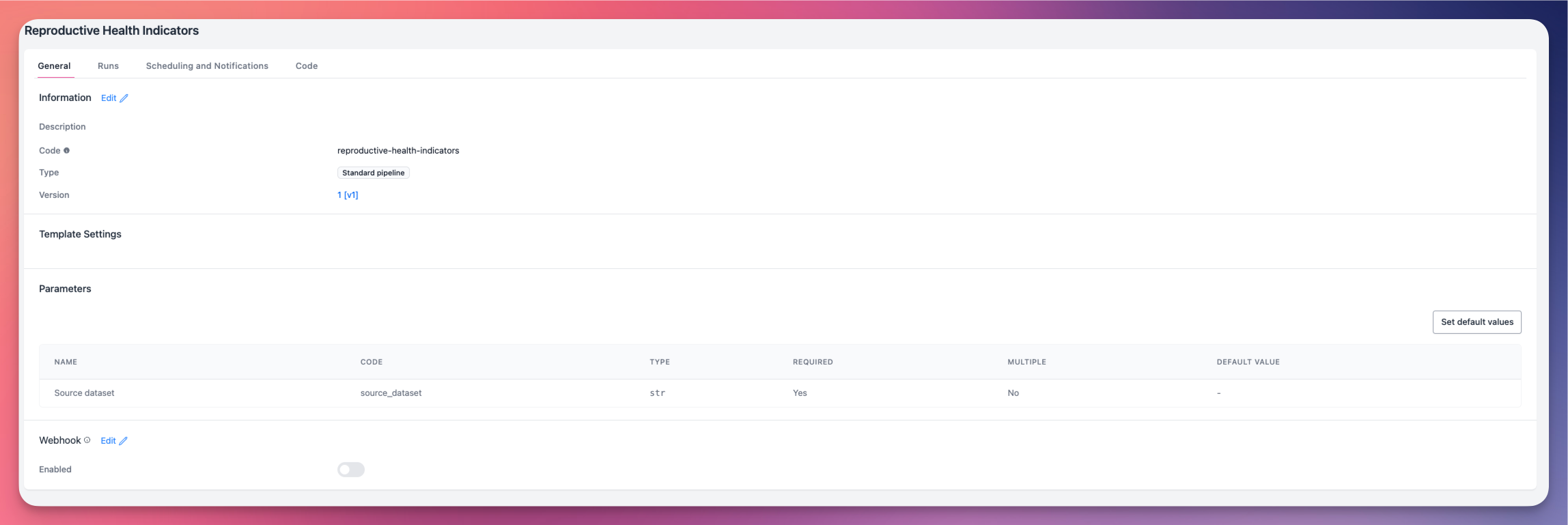
Pipelines are written as Python programs, giving you complete control over their behavior and functionality. For detailed development guidance, see our dedicated pipeline development guide.
Run and monitor pipelines
Once a pipeline is deployed in a workspace, all workspace members can run it.
Pipeline permissions by role
- Viewers: Can launch pipelines and view pipeline runs and outputs
- Editors: Can launch pipelines, view runs and outputs, and create new pipelines
- Admins: Can launch pipelines, view runs and outputs, create new pipelines, and manage pipeline settings
Manual execution
- Select a pipeline: Go to the Pipelines section in your workspace.
- Click Run: Click the Run button to start pipeline execution.
- Configure parameters: Enter any required parameters for the current run.
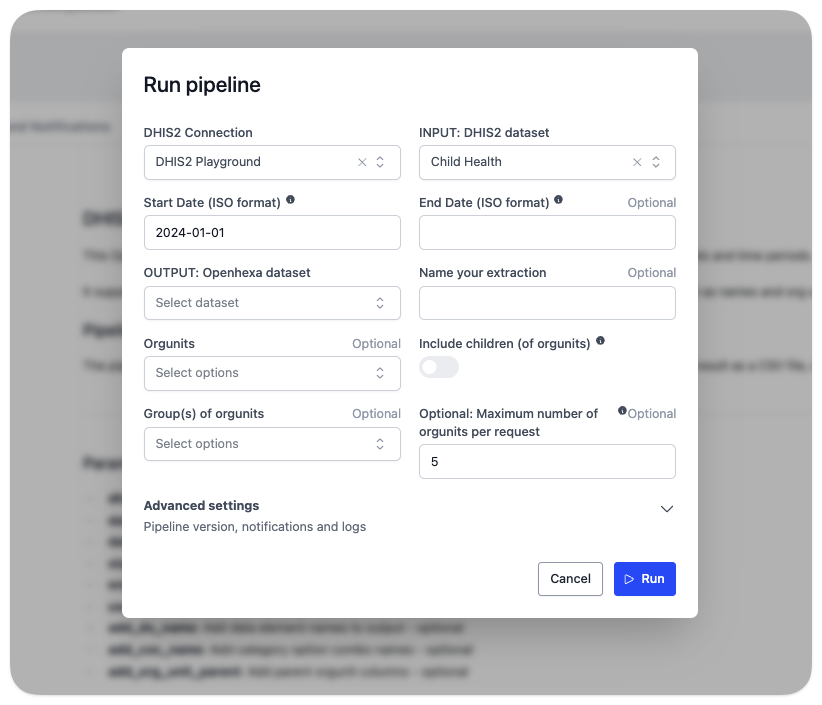
Advanced settings
When you run a pipeline manually, you can configure two advanced settings:
- Send Notifications: Enabled by default. This setting controls whether notifications are sent according to your workspace notification configuration.
- Show Debug Messages: Disabled by default. When enabled, this setting displays detailed debug messages logged with the SDK method
current_run.log_info().
While your pipeline is running, you can monitor its progress in real time:
- Status updates: Real-time status indicators showing current execution state
- Progress messages: Feedback messages (
INFO,DEBUG,WARNING,ERROR,CRITICAL) from the pipeline developer - Log output: Comprehensive error logging information
Access output results
Once a pipeline run completes successfully, you can access its outputs in the run details:
- Generated datasets: Access dataset versions created by the pipeline
- Generated files: Download or view files created by the pipeline
- Database: Access data written to your workspace database

Create pipelines
OpenHEXA provides multiple approaches for creating pipelines, each suited to different use cases and skill levels.
Creation methods
1. Use the OpenHEXA CLI
For developers and data engineers, the CLI provides the most flexible approach: - Full control over pipeline structure, parameters, and configuration - Integration with GitHub for version control - Advanced development features
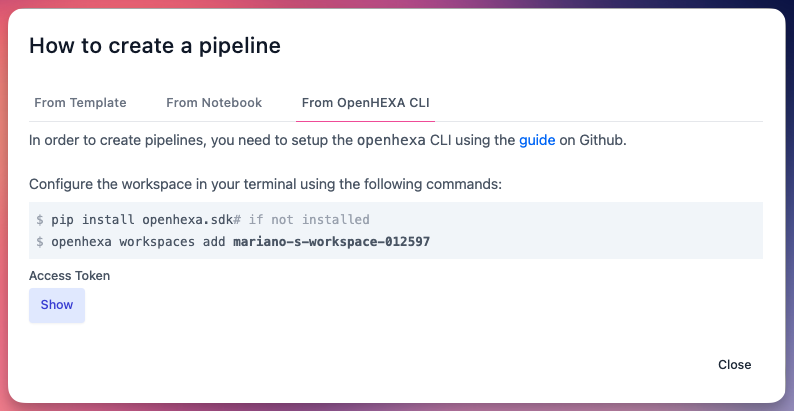
See our guides: Using the OpenHEXA CLI and Writing OpenHEXA Pipelines.
2. From a Jupyter notebook
You can use a Notebook from the workspace file system to be run as a pipeline. This is the easiest way to create a pipeline: - Quick start: Transform exploratory analysis into production workflows - Limitations: Notebook-based pipelines don't support input parameters
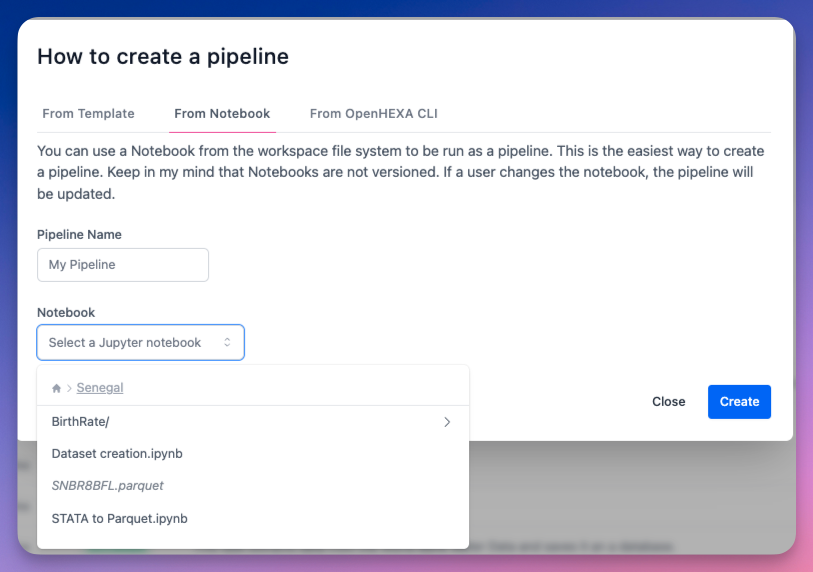
Notebook-based pipeline limitations
Keep in my mind that notebook-based pipelines are not versioned, can't accept parameters and if a user changes the notebook, the pipeline will be updated.
3. From template pipelines
This option lets you use pre-built, professionally developed pipelines for common use cases:
Method 1: From Create Pipelines page
- Go to the Pipelines section.
- Click Create.
- Select From Template.
- Choose your template and click Create Pipeline.
Method 2: From Available Templates page
- Go to Available Templates.
- Select your desired template.
- Click Create Pipeline.
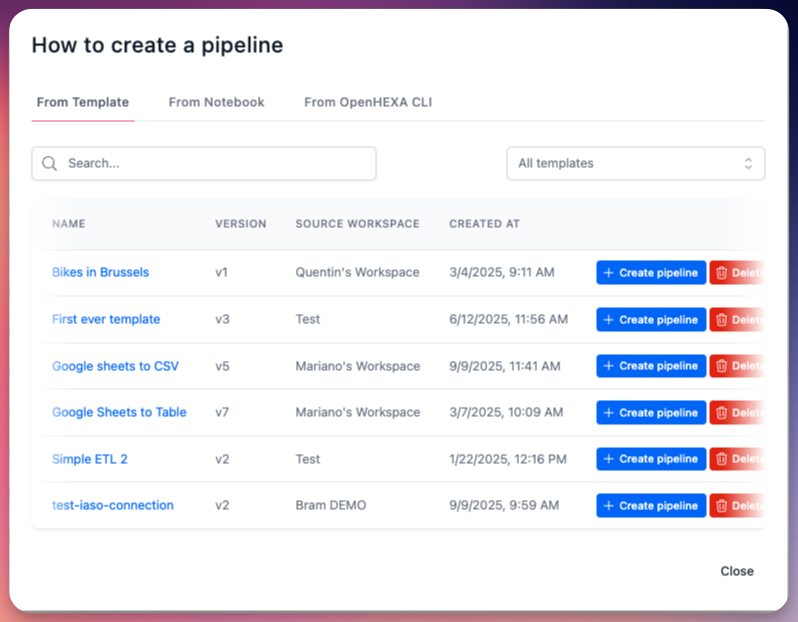
Template pipelines library
OpenHEXA's template library includes official pipelines developed by Bluesquare and partner organizations, specifically designed to address common data integration challenges in public health and analytics.
Explore templates
- Go to Available Templates in your workspace.
- Browse the catalog of available template pipelines.
- Click any template to explore its documentation, code, and capabilities.
Template updates
When you create a pipeline from a template, OpenHEXA maintains a connection between your pipeline and the source template. This enables template upgrades when new versions become available.

You can choose between two upgrade methods when creating a template-based pipeline:
-
Manual (Default): You control when to upgrade. Leave "Auto-update from template" disabled.
- Receive notifications about new versions
- Review changes between versions
- Upgrade using the "Upgrade to latest version" button
-
Automatic: Pipeline automatically updates when template changes. Set "Auto-update from template" enabled.
- No manual intervention needed
- Pipeline stays in sync with template automatically
Publish template pipelines
Pipeline creators can publish their own template pipelines to share with other users and workspaces.
- Develop your pipeline: Create and test your pipeline using standard development practices.
- Prepare documentation: Ensure your pipeline has comprehensive documentation and clear parameter descriptions.
- Publish: When you're satisfied, click Publish Template (or Publish New Template Version if you're publishing a new version of an existing template). Don't forget to add a changelog describing the changes you're making.
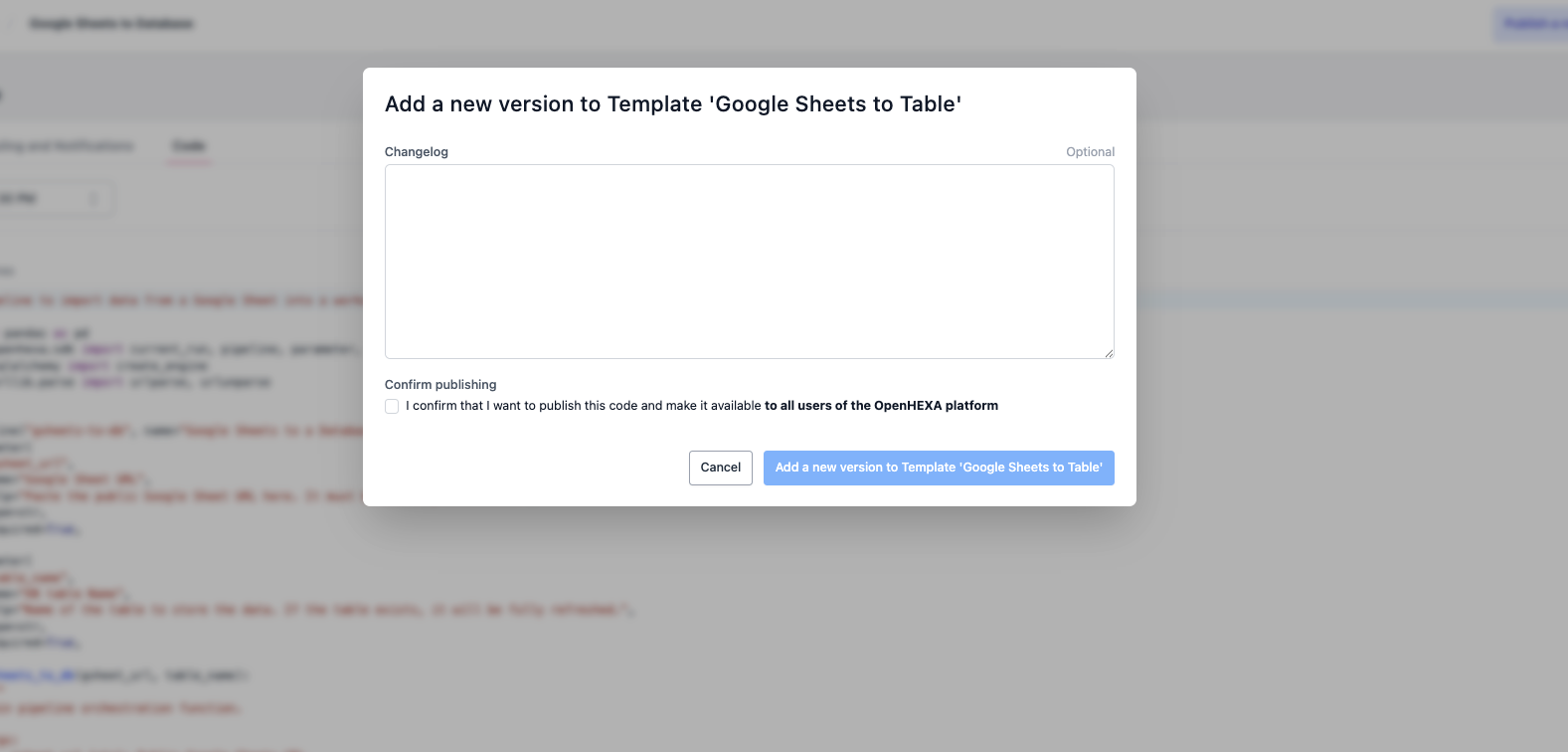
Webhooks
You can trigger pipelines from external applications using webhook endpoints. This enables seamless integration with third-party systems and automated workflows.
Click Edit in the Webhook section, and turn on the Enabled toggle.
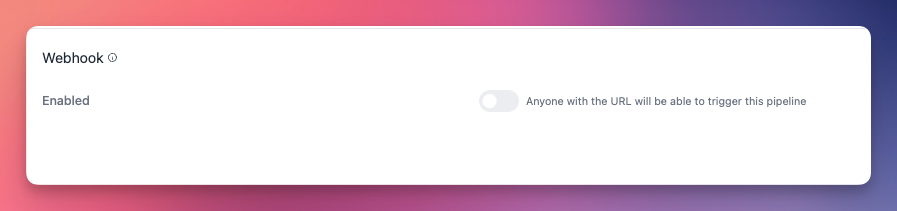
Webhook configuration
- Endpoint URL: Each pipeline has a unique webhook URL for external access
- Parameter support: Webhooks can accept parameters to customize pipeline behavior
Example usage
curl -X POST \
  -H "Content-Type: application/json" \
  -d '{"parameter_1":"1","org_unit_id":14, "sheet_id":"id-sheet"}' \
  https://api.openhexa.org/pipelines/{pipeline_id}/run
Pipeline runs
- Execution history: View all previous pipelines. Click View for detailed logs and results of a specific run.
- Status tracking: Monitor run status (pending, running, completed, or failed)

Scheduling and notifications
You can schedule pipelines to run automatically at specified intervals, enabling hands-off data processing workflows.
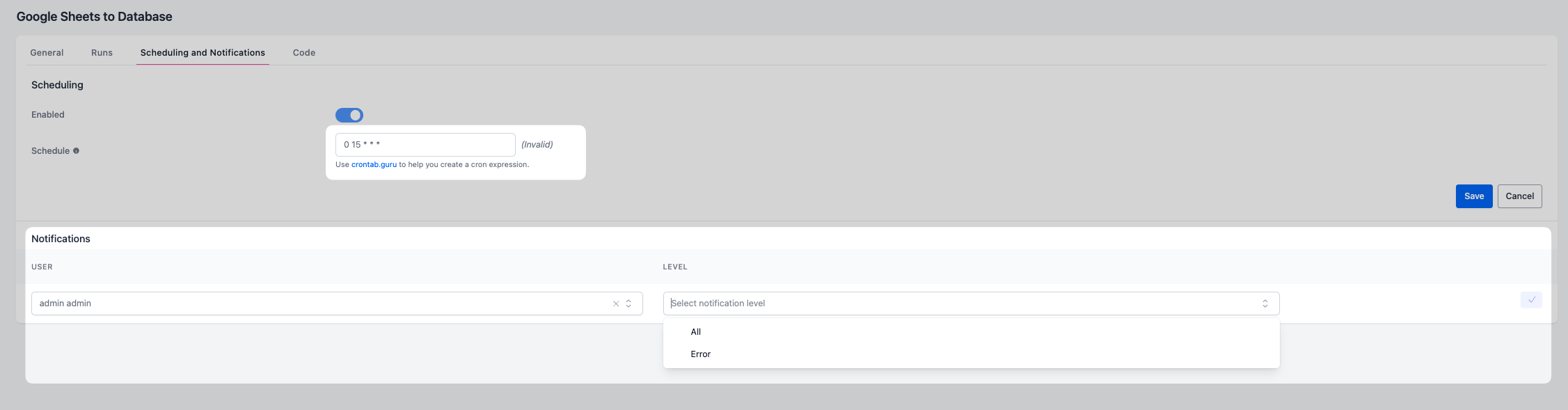
Set up schedules
- Go to your pipeline's detail page.
- Open the Scheduling and Notifications section.
- Configure your schedule using cron expressions. Use crontab.guru if you need syntax help.
Common scheduling patterns
0 0 * * *- Run daily at midnight0 0 * * MON- Run every Monday at midnight0 0 1 * *- Run on the first day of every month at midnight0 */6 * * *- Run every 6 hours*/15 * * * *- Run every 15 minutes
Notification configuration
- Recipients: Choose which workspace members will receive notifications. You can add as many colleagues as you'd like.
- Level: Select the level at which the notification will be triggered for the person: All to send notifications on every run, or Error for notifications in case of error only.
Default configuration
Set default parameter values that will be used for scheduled runs.
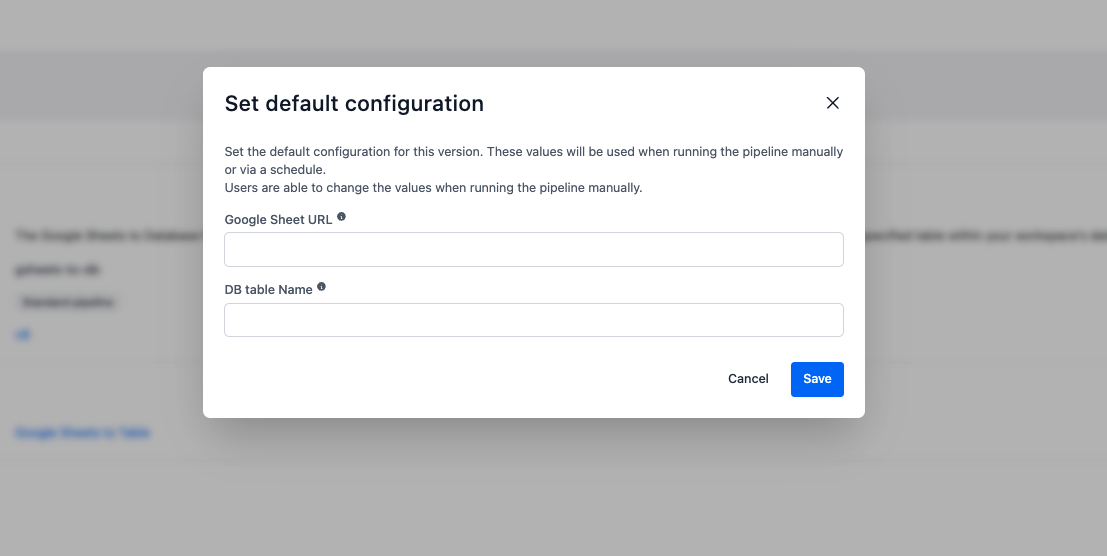
Default configuration is mandatory for scheduling
You must set up default parameters to schedule your pipeline to run automatically. Make sure you set these before attempting to schedule.
Pipeline timeouts
All pipelines have execution time limits to prevent resource exhaustion:
- Standard timeout: 4 hours (default configuration)
- Maximum timeout: 12 hours (configurable by pipeline authors)
- Custom timeouts: Pipeline developers can configure custom timeouts within the maximum limit
Source code access
- View and edit code: Browse and modify pipeline source code directly in the web interface
- Download: Export pipeline code for local development or backup